
Voice announcements
Do you want to play a message to callers before forwarding the call to some other destination? Or do you simply want to play a message and then disconnect? You can accomplish this easily by creating a Voice app with an announcement. In this article we will explain how you can create an announcement in a matter of minutes.  To get started, ensure that you have a free Sonetel account. If you have one, go to the Voice app section in the account settings.
Features of a Voice App Announcement
An announcement has the following features:
- A message is played to the caller Plays an optional welcome message such as "Welcome to XYZ".
- An action is taken The call can be either forwarded to some phone number, voice app or SIP-address - or be disconnected.
You can for example have an announcement saying "Welcome to XYZ. Please hold while we connect your call to an agent" and then send the caller to a regular mobile number.

Creating an announcement
To create an announcement now, sign into the Sonetel web app and move to the Voice apps section. If you do not have a Sonetel account, create one free here. This is what the Voice apps section looks like in the Account settings. 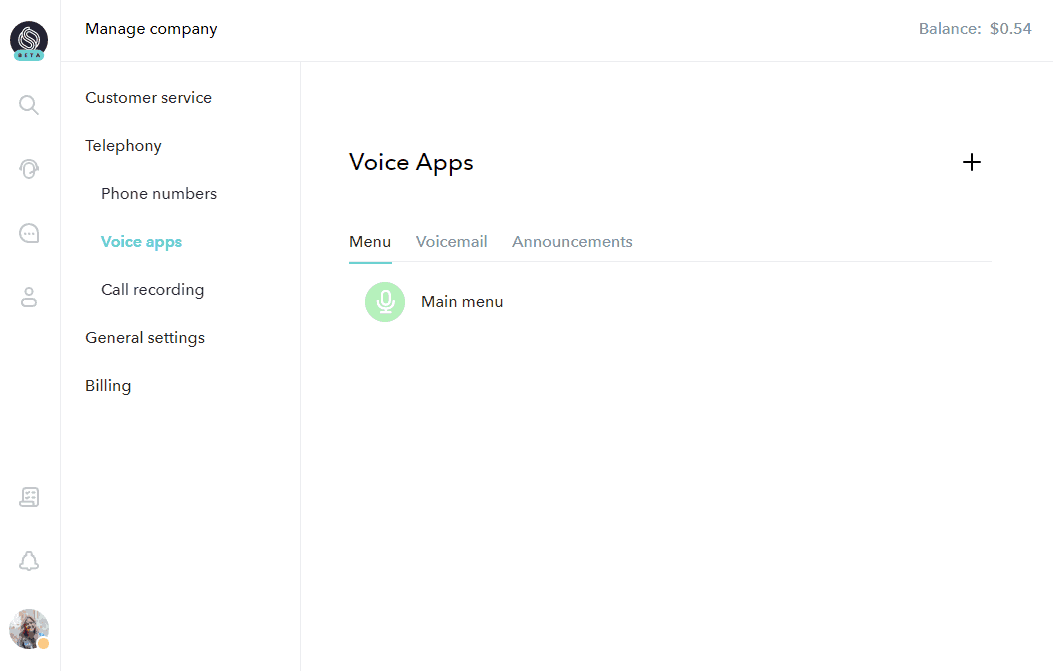
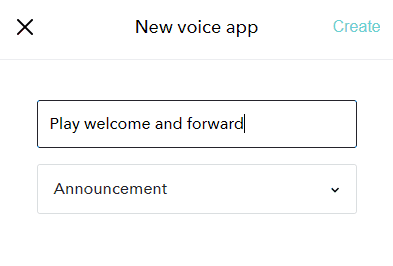
Announcement edit view
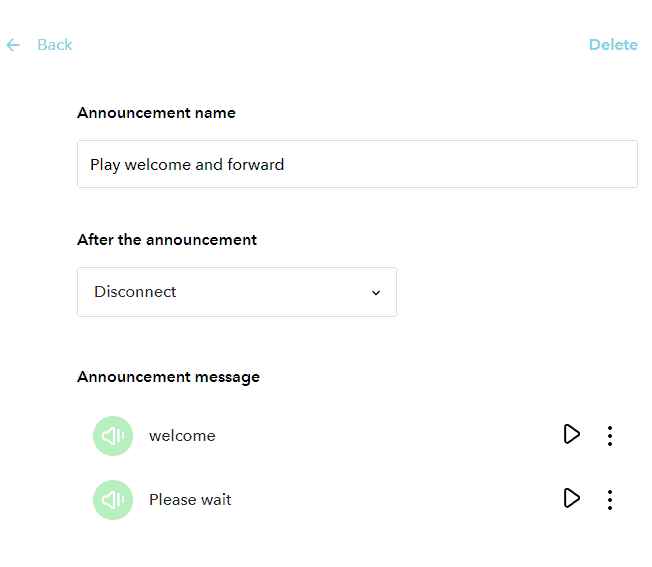
- Delete Allows you to delete the entire announcement.
- Announcement name Shows the name you gave the announcement while creating it.
- After the announcement Define what should happen after the announcement has been played to the caller.
- Announcement message Allows you to listen to the current announcement and message played prior to forwarding the call (if this is the action you choose).
Possible actions after playing announcement
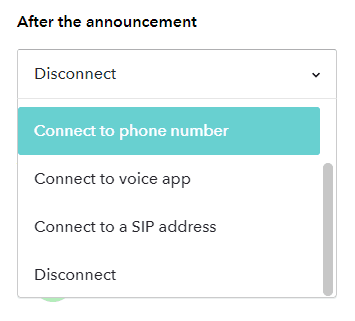
- User Allows you to select a team member that you want the call to be sent to. The user's call settings will define how they receive the call.
- Phone number Enter a phone number - preferably in the +NUMBER format - that the caller should be forwarded to.
- Voice app Connect the caller to another Voice menu, Announcement or Voicemail box.
- SIP address Enter a SIP-address (only for advanced users) that the call should be diverted to.
- Disconnect Hangs up the call. This is the default action.
Update messages played
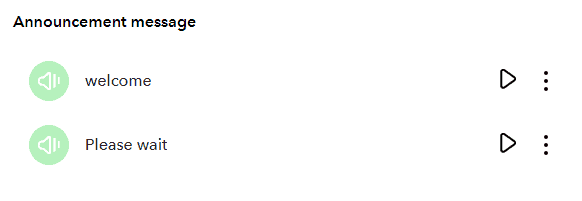
- Welcome This is the announcement.
- Please wait This is played if you define that the caller should be forwarded somewhere after hearing the announcement.
Push the Play button to listen to what the message sounds like now. Push the menu icon (next to the play button) and select Replace audio, if you want to change the recording. If you choose to update a message, you have the following options: 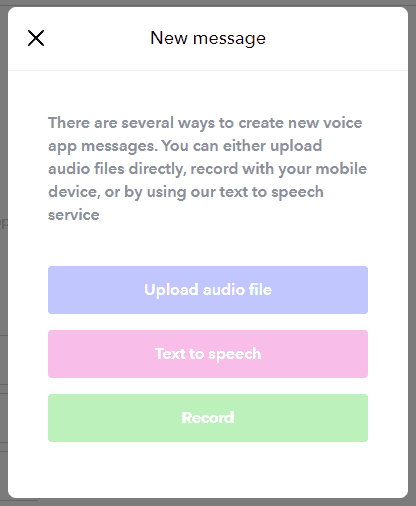
- Upload audio file The file you upload can be in WAV, MP3 format etc.
- Text to speech Allows you to type a text and have it converted to a recording in the language of choice, using Text-to-speech.
- Record The system will call your mobile phone number and ask you to record your message after the beep. After recording, you can listen and re-record before saving.
If you select the create an audio message using text to speech, you will get an interface similar to the below for entering the text you want spoken to the caller. 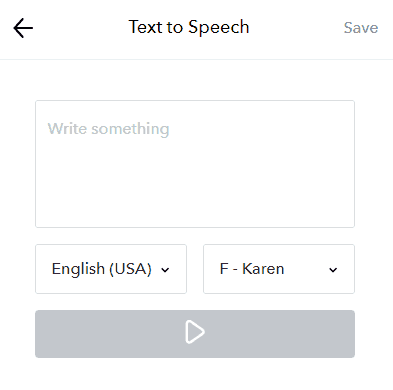
How to connect incoming calls to your announcement
You can purchase phone numbers from Sonetel and connect these to your announcement. If you already have a Sonetel account, go to the phone numbers page. Otherwise, sign up and select a number here. It is also possible to send calls to your announcement across the Internet, to the unique SIP address of the voice app. Photo by Patrick Fore and Oleg Laptev on Unsplash